So you're the proud possessor of a shiny new Android tablet. Now what?
Google's tablet operating system is a little different from the versions of Android you may have seen before. Unlike the iPad, which is basically a blown-up version of the iPhone, Android Honeycomb tablets are designed to take full advantage of the extra screen space--and it's up to you to decide how to use it.
Of course, flexibility and simplicity don't always go hand in hand, and Honeycomb can be a bit overwhelming at first. But once you get the hang of it, you'll find that its power and its potential for personalization can be pretty darn sweet.
Here's a quick guide to help you get started.
Hello, Honeycomb: Navigating Your Home Screen
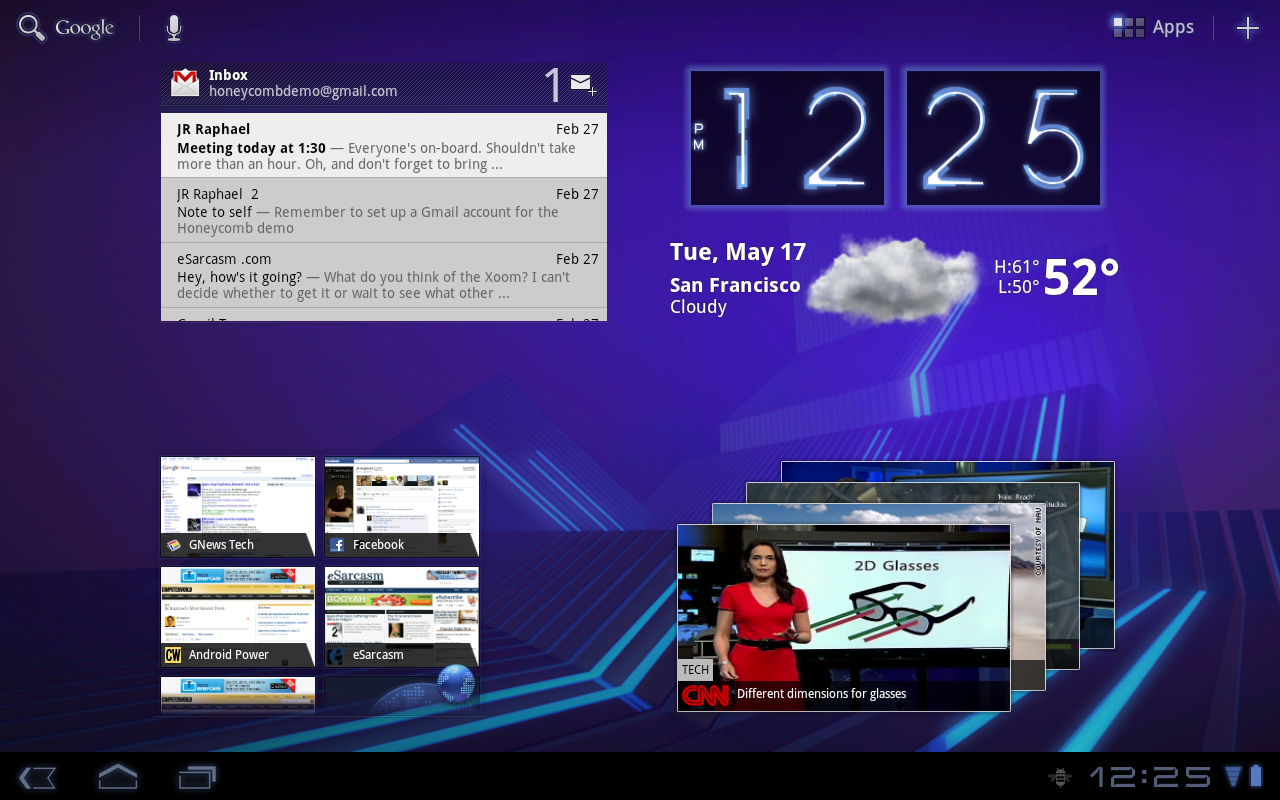
 The Android Honeycomb home screen keeps all of the OS's main controls visible on your tablet's display.
Let's begin with the home screen. On Honeycomb--unlike on past smartphone-focused editions of Android--the main controls are always visible right on your display.
- At the top left corner of the screen sits a Google search box. Tapping it lets you simultaneously search the Internet and everything on your device.
- Next to the search box is a microphone icon that activates Google's robust Voice Actions system. You can use it to speak commands such as "listen to" followed by the name of an artist, album, or song; "send e-mail to" followed by the name of a contact and a message; or even "note to self" followed by a memo. You can also speak any phrase to launch an instant Web search for the term.
- At the top right of the screen is a six-square icon with the label 'Apps'. Touch it for access to the full menu of applications installed on your tablet.
- Next to the 'Apps' icon is a large white plus sign. It opens the tool for customizing your tablet's home screens; we'll look at it in more detail in a moment.
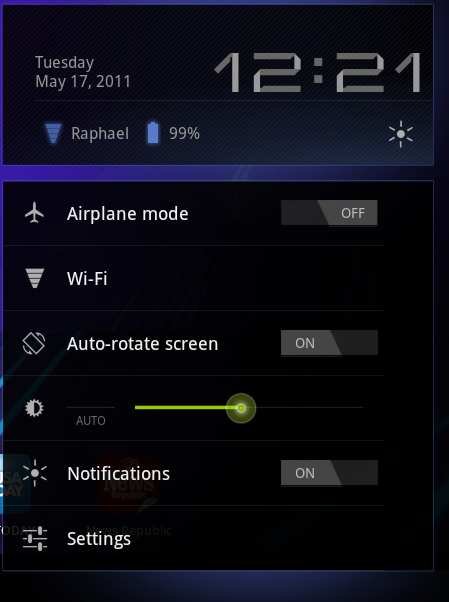
 The system clock, network connection icon, and battery level icon are in the lower-right portion of the home screen. Double-tapping this area brings up other options.At the bottom right of the display is a system clock, along with icons indicating your current network connection status and tablet battery level. Tapping this area once will bring up more-detailed information. Tapping it a second time will bring up additional options, including toggles for airplane mode, Wi-Fi, and other system settings.
From time to time, notifications will appear in the bottom-right area of your display--when you get a new e-mail message, for example, or when a calendar reminder comes due. You can tap any notification to view more information about it or you can dismiss it altogether.
Getting Around in Honeycomb
 The main navigation options in Honeycomb are back, home, and multitasking.
The area at the bottom left of the screen focuses on navigation. No matter where you are in the system, you'll always see three icons:
- The left arrow jumps you back one step--not terribly useful on the home screen, but handy when you're in applications.
- The home icon, predictably, takes you back to the home screen. If your tablet is running Android 3.1, your system will remember which panel you last had open and will automatically return you there.
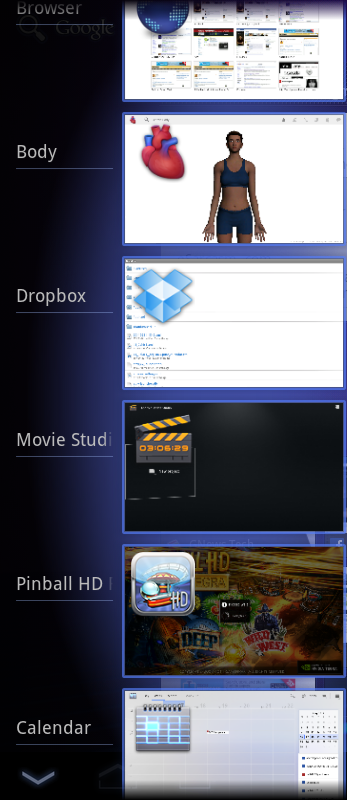
 Honeycomb's multitasking menu shows a list of recently apps; clicking an entry lets you jump directly to it.The third icon opens the Honeycomb multitasking menu. This menu shows you a list of your most recently used apps and allows you to jump directly to any of them from anywhere in the system.
Occasionally, you may see a fourth icon in the bottom-left portion of your screen. This icon, which looks like a small grid, appears when you're using a smartphone app that isn't optimized for the Honeycomb interface. Tapping the icon brings up a list of options for the app; it's the equivalent of pressing the Menu key on an Android phone.
When you work with apps that are optimized for Honeycomb, the grid icon is supplanted by what Google likes to call the 'action bar'. The action bar permits apps to use the top-right area of your screen to provide additional options that change, depending on what you're doing. If you're looking at your inbox in Gmail, for example, you'll see an icon for composing a new message. If you're viewing an individual e-mail message, icons for archiving or deleting the message will appear in the same space.
Customizing Your Tablet
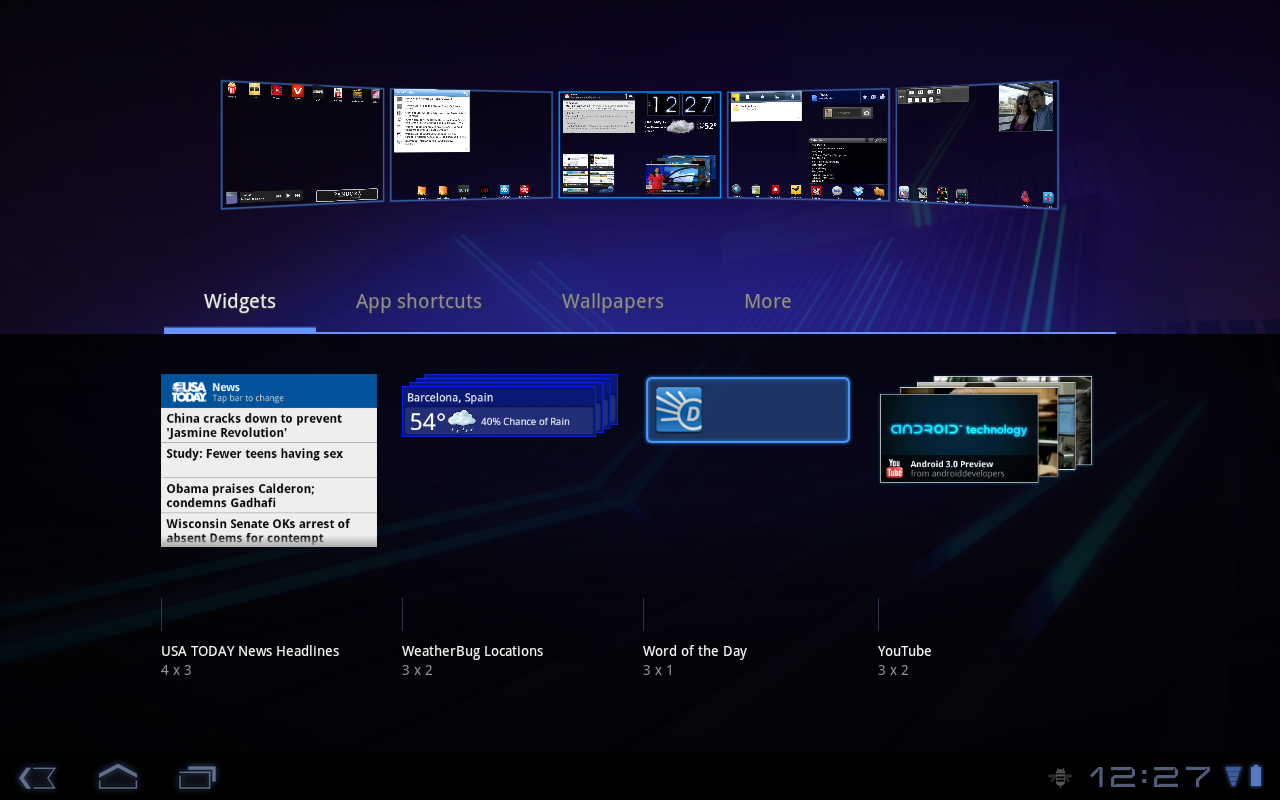
All right--ready to start making your Android tablet feel like your own? Tap the plus sign in the upper right corner of your home screen to head into Honeycomb's customization control center.
 Honeycomb's customization control center shows thumbnails of all five home-screen panels plus a list of widgets and app shortcuts.
In the control center, you'll see thumbnails of all five home-screen panels and a list of items that you can place anywhere you like. Some of the items are widgets--which are live, functioning versions of programs that run right on your home screen. Others are app shortcuts--normal static icons that launch applications. You can touch any item to drag it to the panel of your choice; you can also adjust things from the home screen later on, by touching and holding any item to move, delete, or (in certain cases) resize it.

So there you have it: the ins and outs of Honeycomb. Now just grab your tablet, dive in, and don't worry: You won't get stung